Notes
Notes in Keyframe Pro 2 allow users to quickly and easily add notes to frames in a source or timeline. Notes can be used for animation review, feedback, quick thoughts, reminders and much more.


Viewing Notes
Notes are displayed in a sidebar on the right side of the application. The visiblity of this sidebar can be toggled through the main menu (Tools->Notes), clicking the Notes button  in the Display Toolbar or by using the Ctrl+Shift+B hotkey (Cmd+Shift+B on macOS).
Adding/Editing Notes
Add a new note (or edit an existing note) at the current frame by clicking the Add/Edit button  at the top of the Notes sidebar or by using the Ctrl+W hotkey (Cmd+W on macOS).
This will open the Note Editor window:
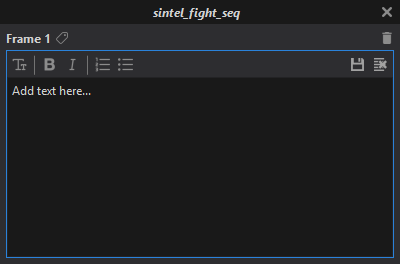
After editing the text, click the Save button  to apply the changes. Click the Discard button
  to ignore the changes.
A label, applying a colored background to the frame number, can be set by clicking the Label button  .
.
Note: Double-clicking on an existing note in the sidebar will open the Note Editor for that note.
Deleting Notes
A note can be deleted by first selecting it in the sidebar and then pressing the Delete key (Fn+Delete on macOS) or by right-clicking on the note and selecting "Delete" from the context menu.
Notes can also be deleted though the Note Editor by clicking the Delete button  .
.
Navigation
Left-mouse clicking on a note in the sidebar sets the playback time to the note's frame. During playback a double-click is requried.
Importing a CSV File
Notes can be imported from a CSV file through the main menu (Bookmarks->Notes->Import CSV...).
The CSV file requires a minumum of two columns (frames and notes) with header names in the first row.
Selecting a CSV file displays the Column Select dialog to select the frames and notes columns.
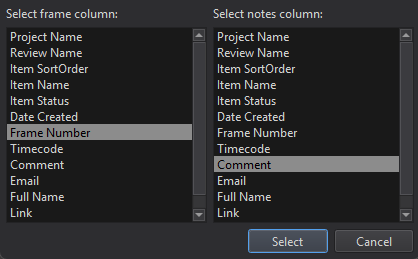
Clicking Select displays a preview window prior to import.